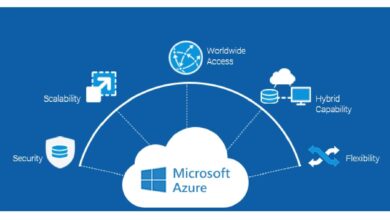
Logging into Azure doesn’t have to be complicated. Whether you’re a developer, IT admin, or business user, mastering the azure log in process is your first step toward seamless cloud management. Let’s break it down—simply, securely, and smartly.






Understanding Azure Log In: The Gateway to Cloud Power

The azure log in process is more than just typing a username and password—it’s your secure entry point to Microsoft’s vast cloud ecosystem. From managing virtual machines to accessing databases and deploying AI models, everything starts with a successful sign-in. Millions of users rely on Azure daily, making secure and efficient access critical.
What Is Azure Log In?
Azure log in refers to the authentication process that grants users access to the Microsoft Azure portal, services, and resources. It typically involves a Microsoft account (MSA) or an Azure Active Directory (Azure AD) account. This login is the foundation of identity and access management (IAM) within the Azure environment.
- Used to access the Azure portal (portal.azure.com)
- Enables control over cloud resources like VMs, storage, and apps
- Supports multi-factor authentication (MFA) for enhanced security
Microsoft ensures that every azure log in is encrypted and monitored for suspicious activity. The system integrates with Azure AD, which acts as the central identity provider for all Azure services.
Why Azure Log In Matters for Businesses
For organizations, the azure log in process is not just about access—it’s about governance, compliance, and operational efficiency. A well-managed login system prevents unauthorized access, reduces the risk of data breaches, and streamlines user onboarding.
“Identity is the new perimeter.” – Microsoft Security Report
With remote work on the rise, secure azure log in practices are more important than ever. Companies using Azure can enforce conditional access policies, require MFA, and monitor sign-in logs in real time through Azure Monitor and Azure AD Identity Protection.
Step-by-Step Guide to Azure Log In
Whether you’re logging in for the first time or troubleshooting access issues, following the correct steps ensures a smooth experience. Here’s how to perform an azure log in correctly and securely.
How to Log In to Azure: Basic Steps
1. Open your web browser and go to portal.azure.com.
2. Enter your email address (associated with your Microsoft or Azure AD account).
3. Click “Next.”
4. Enter your password.
5. Complete any additional security verification (e.g., MFA prompt).
6. You’ll be redirected to the Azure dashboard.
- Supported browsers: Chrome, Edge, Firefox, Safari
- Always use HTTPS to prevent man-in-the-middle attacks
- Clear cache if login pages fail to load
If you’re part of an organization, your login might redirect to a custom sign-in page hosted by your company’s identity provider (e.g., via SSO).
Troubleshooting Common Azure Log In Issues
Even with a simple process, users often face issues during azure log in. Here are the most common problems and how to fix them:
- Forgot Password? Use the “Forgot password?” link to reset it via email, phone, or security questions.
- Account Locked? After too many failed attempts, Azure may temporarily lock the account. Wait 30 minutes or contact your admin.
- MFA Not Working? Ensure your authenticator app is synced or that your phone has network access.
- Stuck on Loading Screen? Disable browser extensions or try an incognito window.
For enterprise users, misconfigured Conditional Access policies can also block logins. Admins should check the Azure AD Sign-in logs under Monitoring > Sign-ins to diagnose failures.
Azure Active Directory: The Engine Behind Azure Log In
Azure Active Directory (Azure AD) is the backbone of every azure log in. It’s not just a directory service—it’s a comprehensive identity and access management platform that powers authentication across Microsoft 365, Azure, and thousands of third-party apps.
What Is Azure AD and How It Powers Log In
Azure AD is Microsoft’s cloud-based identity service that manages user identities, handles authentication, and enforces access policies. When you perform an azure log in, Azure AD verifies your credentials and issues a security token that grants access to resources.
- Stores user profiles, groups, and roles
- Handles single sign-on (SSO) across apps
- Supports social identity providers (Google, Facebook) via B2C
Unlike traditional on-premises Active Directory, Azure AD is designed for the cloud, offering global scalability and integration with modern authentication protocols like OAuth 2.0 and OpenID Connect.
Differences Between Azure AD and On-Premises AD
Many organizations run both Azure AD and on-premises Active Directory. Understanding the differences is crucial for hybrid environments.
| Azure AD | On-Premises AD |
|---|---|
| Cloud-based | On-premises server |
| REST-based APIs | LDAP, Kerberos, NTLM |
| Optimized for web & mobile apps | Traditional Windows domain management |
| Synchronizes with on-prem via Azure AD Connect | Can sync user data to Azure AD |
For seamless azure log in across hybrid setups, Azure AD Connect is essential. It synchronizes user accounts, passwords, and group memberships from on-premises AD to Azure AD, ensuring consistent access.
Multi-Factor Authentication: Strengthening Azure Log In Security
One of the most effective ways to secure your azure log in is by enabling Multi-Factor Authentication (MFA). MFA adds an extra layer of protection by requiring users to verify their identity using at least two methods.
How MFA Enhances Azure Log In
MFA prevents unauthorized access even if passwords are compromised. During the azure log in process, users must provide:
- Something they know (password)
- Something they have (phone, authenticator app, security key)
- Something they are (biometrics, if supported)
According to Microsoft, MFA can block over 99.9% of account compromise attacks. It’s a must-have for any organization using Azure.
Setting Up MFA for Your Azure Account
To enable MFA:
- Log in to the Azure portal as an administrator.
- Navigate to Azure Active Directory > Security > Multifactor Authentication.
- Select the users you want to enable MFA for.
- Choose the verification methods (app notification, call, SMS, or FIDO2 security key).
- Guide users through the setup process.
For better user experience, consider using the Microsoft Authenticator app, which supports passwordless sign-ins and automatic push notifications.
“Security isn’t a feature—it’s a foundation.” – Microsoft Security Team
Single Sign-On (SSO): Simplifying Azure Log In for Teams
For businesses with multiple cloud applications, managing separate logins is inefficient and risky. Single Sign-On (SSO) solves this by allowing users to log in once and access all authorized apps—including Azure—without re-entering credentials.
How SSO Works with Azure Log In
When SSO is configured, the azure log in process redirects users to a central identity provider (IdP), such as Azure AD, Okta, or Ping Identity. After authentication, the IdP issues a token that grants access to Azure and other connected services.
- Reduces password fatigue
- Improves security by centralizing access control
- Enables just-in-time provisioning via SCIM
Azure supports SSO for over 2,600 pre-integrated apps, and custom apps can be added easily through the Azure portal.
Configuring SSO for Azure: Step-by-Step
1. Go to Azure Portal > Azure Active Directory > Enterprise Applications.
2. Select the app you want to configure.
3. Click Single sign-on.
4. Choose a mode: SAML, OpenID Connect, or Password-based.
5. Configure the settings (e.g., Identifier, Reply URL).
6. Download the Federation Metadata XML or provide the necessary endpoints to your IdP.
For detailed guidance, refer to Microsoft’s official SSO documentation.
Conditional Access: Smart Controls for Azure Log In
Conditional Access (CA) policies allow organizations to enforce dynamic access rules based on user, device, location, and risk level. It’s one of the most powerful tools to secure the azure log in process.
What Are Conditional Access Policies?
Conditional Access policies in Azure AD let you define rules like:
- “Require MFA when logging in from outside the corporate network”
- “Block access from unmanaged devices”
- “Allow access only during business hours”
These policies are evaluated in real time during every azure log in attempt, ensuring that access is granted only when conditions are met.
Creating Your First Conditional Access Policy
To create a CA policy:
- Sign in to the Azure portal as a Global Administrator or Conditional Access Administrator.
- Go to Azure AD > Security > Conditional Access.
- Click + New policy.
- Give it a name (e.g., “Require MFA for External Access”).
- Under Users and groups, select who the policy applies to.
- Under Cloud apps or actions, select “Microsoft Azure Management” or specific apps.
- Under Conditions, set location (e.g., all trusted IPs excluded).
- Under Access controls, select “Grant” and check “Require multi-factor authentication”.
- Enable the policy and click Create.
Always test policies in “Report-only” mode first to avoid accidentally locking users out.
Monitoring and Auditing Azure Log In Activity
Security doesn’t end at login—it continues with monitoring. Azure provides robust tools to track and analyze every azure log in attempt, helping detect anomalies and respond to threats quickly.
Using Azure AD Sign-In Logs
The Sign-In logs in Azure AD provide detailed information about every login attempt, including:
- User name and IP address
- Device and location
- Authentication methods used
- Success or failure status
- Risk level (if Identity Protection is enabled)
To access logs: Go to Azure AD > Monitoring > Sign-ins. You can filter by date, app, status, and risk level.
Setting Up Alerts for Suspicious Log In Attempts
To stay proactive, configure alerts for unusual activity:
- Navigate to Azure AD Identity Protection.
- Go to Risk detections and User risk policy.
- Set up alerts for high-risk sign-ins (e.g., from anonymous IP addresses or impossible travel).
- Integrate with Microsoft Sentinel for advanced threat detection.
You can also use Azure Monitor and Log Analytics to create custom alerts based on log data.
Best Practices for a Secure and Efficient Azure Log In
To maximize security and usability, follow these proven best practices for managing the azure log in process.
Enforce Strong Password Policies
While passwords are becoming less central, they’re still part of the azure log in flow for many users. Enforce strong password policies:
- Minimum 12 characters
- Require uppercase, lowercase, numbers, and symbols
- Prevent use of common passwords
- Set expiration periods (optional, as Microsoft now recommends against forced resets)
Azure AD offers password protection features that block weak passwords and screen against known breaches.
Use Passwordless Authentication Where Possible
For a more secure and user-friendly experience, adopt passwordless authentication:
- Microsoft Authenticator app
- FIDO2 security keys (e.g., YubiKey)
- Windows Hello for Business
Passwordless methods eliminate the risk of phishing and credential theft, making the azure log in process both faster and safer.
Regularly Review User Access and Roles
Over time, users accumulate permissions they no longer need. Conduct regular access reviews:
- Use Azure AD Access Reviews to audit user access to apps and groups
- Apply the principle of least privilege (PoLP)
- Remove inactive accounts promptly
This minimizes the attack surface and ensures compliance with regulations like GDPR and HIPAA.
How do I reset my Azure login password?
If you’ve forgotten your password, go to the Azure sign-in page and click “Forgot password?” Follow the prompts to verify your identity via email, phone, or security questions, then set a new password. If you’re using an organizational account, contact your Azure administrator for assistance.
Can I use Google or Facebook to log in to Azure?
Direct login with Google or Facebook isn’t supported for the Azure management portal. However, Azure AD B2C allows consumer-facing apps to use social identities like Google, Facebook, Amazon, and Apple for sign-in. This is typically used for customer identity management, not admin access.
Why is my Azure login failing even with the correct password?
Common reasons include: multi-factor authentication failure, account lockout due to too many attempts, Conditional Access policies blocking access, or browser issues. Check the Azure AD Sign-In logs for error codes, and ensure your device and network meet security requirements.
What is the difference between Microsoft account and Azure AD account?
A Microsoft account (MSA) is a personal account (e.g., @outlook.com, @hotmail.com) used for consumer services like OneDrive and Xbox. An Azure AD account is a work or school account created by an organization, used to access Azure, Microsoft 365, and enterprise apps. Both can be used for azure log in, but Azure AD offers more control and security features.
How can I enable single sign-on for my team in Azure?
To enable SSO, go to the Azure portal, navigate to Azure Active Directory > Enterprise Applications, select an app, and configure the Single sign-on settings. Choose a method (SAML, OpenID Connect), enter the required details, and coordinate with your identity provider. For internal apps, Azure AD can act as the IdP.
Mastering the azure log in process is essential for anyone using Microsoft’s cloud platform. From basic access to advanced security controls like MFA, Conditional Access, and SSO, every step plays a role in protecting your digital assets. By following best practices—enforcing strong authentication, monitoring sign-in activity, and regularly reviewing access—you can ensure a secure, efficient, and user-friendly experience. Whether you’re an individual developer or part of a large enterprise, a well-managed azure log in is the foundation of cloud success.
Recommended for you 👇
Further Reading: