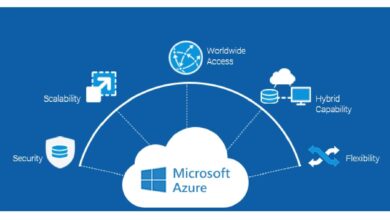
Ever wondered how millions of businesses securely manage user access across cloud apps? The answer lies in Windows Azure AD—a robust identity and access management solution that’s reshaping how organizations handle security in the digital era.






What Is Windows Azure AD and Why It Matters

Windows Azure AD, officially known as Microsoft Entra ID (formerly Azure Active Directory), is Microsoft’s cloud-based identity and access management service. It enables organizations to manage user identities, control access to applications, and enforce security policies across hybrid and cloud environments.
Unlike traditional on-premises Active Directory, Windows Azure AD is built for the cloud, offering seamless integration with Microsoft 365, Azure, and thousands of third-party SaaS applications. It’s not just a directory—it’s a comprehensive identity platform that powers secure access in modern workplaces.
Core Purpose of Windows Azure AD
The primary goal of Windows Azure AD is to provide secure, seamless access to applications and resources for users, regardless of location or device. It acts as the gatekeeper between users and the digital assets they need to do their jobs.
- Centralizes identity management in the cloud
- Enables single sign-on (SSO) across multiple apps
- Supports multi-factor authentication (MFA) for enhanced security
By leveraging identity as the new perimeter, Windows Azure AD helps organizations shift from network-centric to identity-centric security models—a critical evolution in today’s remote-first world.
Differences Between Azure AD and On-Premises AD
While both systems manage identities, Windows Azure AD and traditional Active Directory serve different purposes and architectures. On-premises AD is designed for internal networks, using protocols like LDAP and Kerberos, while Azure AD is optimized for web-based authentication using OAuth, OpenID Connect, and SAML.
- On-prem AD: Domain-based, uses Group Policy, focused on Windows devices
- Windows Azure AD: Cloud-native, API-driven, supports multi-platform devices
- Hybrid setups allow synchronization via Azure AD Connect
“Azure AD isn’t a cloud version of Active Directory—it’s a new identity platform designed for the cloud era.” — Microsoft Documentation
Key Features of Windows Azure AD That Transform Security
Windows Azure AD offers a suite of powerful features that go beyond basic user authentication. These tools empower IT teams to automate access control, detect threats, and ensure compliance across complex digital ecosystems.
Single Sign-On (SSO) Across Applications
One of the most impactful features of Windows Azure AD is its ability to enable single sign-on. Users log in once and gain access to all authorized applications—Microsoft 365, Salesforce, Dropbox, and more—without re-entering credentials.
This reduces password fatigue, improves user experience, and minimizes the risk of weak or reused passwords. SSO works through standards-based protocols like SAML and OpenID Connect, making integration with third-party apps straightforward.
Organizations can also publish custom applications in the Azure AD app gallery, enabling secure access even for in-house developed tools. Learn more about SSO setup at Microsoft’s official guide.
Multi-Factor Authentication (MFA) for Enhanced Protection
Windows Azure AD’s Multi-Factor Authentication adds an extra layer of security by requiring users to verify their identity using two or more methods: something they know (password), something they have (phone or token), or something they are (biometrics).
MFA can be enforced globally or conditionally based on risk, location, or device compliance. For example, a user logging in from an unfamiliar country might be prompted for MFA, while a known device on the corporate network may not.
- SMS, phone calls, authenticator apps, and FIDO2 security keys are supported
- Adaptive MFA uses AI to assess risk and apply policies dynamically
- Reduces account compromise by up to 99.9%
According to Microsoft, enabling MFA blocks over 99.9% of account compromise attacks. Explore MFA best practices at Microsoft Learn.
Conditional Access Policies for Smart Security
Conditional Access is a cornerstone of Windows Azure AD’s security framework. It allows administrators to define rules that grant or deny access based on specific conditions like user location, device compliance, sign-in risk, or application sensitivity.
For instance, a policy can block access from unmanaged devices or require MFA when accessing financial systems. These policies are built using an if-then logic: If a user meets certain conditions, then specific access controls are applied.
- Supports zero-trust security models
- Integrates with Microsoft Defender for Cloud Apps
- Can be tested in report-only mode before enforcement
Conditional Access is essential for organizations adopting zero-trust principles, ensuring that trust is never assumed and always verified.
How Windows Azure AD Integrates with Microsoft 365 and Azure
Windows Azure AD is deeply integrated with Microsoft’s ecosystem, serving as the identity backbone for Microsoft 365 and Azure services. This tight integration enables seamless user management, licensing, and security enforcement across platforms.
Seamless Microsoft 365 Integration
Every Microsoft 365 subscription relies on Windows Azure AD for user authentication and license assignment. When you add a user in the Microsoft 365 admin center, you’re actually creating a user in Azure AD.
This integration allows for centralized management of email, Teams, SharePoint, and other productivity tools. Administrators can assign licenses, enforce compliance policies, and monitor sign-in activity—all from a single dashboard.
- User provisioning and deprovisioning are automated
- Group-based licensing simplifies management
- Access reviews ensure only active users retain permissions
This reduces administrative overhead and ensures consistent policy enforcement across the Microsoft 365 suite.
Role in Azure Resource Access Management
When managing cloud resources in Azure—like virtual machines, databases, or storage accounts—Windows Azure AD controls who can access what. Azure Role-Based Access Control (RBAC) uses Azure AD identities to assign granular permissions.
For example, a developer might have ‘Contributor’ access to a specific resource group, while a finance team member has ‘Reader’ access to billing data. These roles are assigned directly to Azure AD users, groups, or service principals.
- Supports least-privilege access principles
- Enables just-in-time (JIT) access via Azure AD Privileged Identity Management (PIM)
- Logs all access attempts for auditing and compliance
This integration ensures that cloud resources are protected by the same identity system used for applications and devices.
User and Group Management in Windows Azure AD
Effective identity management starts with organizing users and assigning appropriate access. Windows Azure AD provides flexible tools for creating, managing, and securing user identities and groups at scale.
Creating and Managing User Identities
Administrators can create user accounts manually, import them in bulk via CSV, or automate provisioning through integration with HR systems. Each user is assigned a unique UPN (User Principal Name), typically in the form of an email address.
Key attributes like job title, department, and manager can be set to support reporting and policy-based access control. Password policies, MFA requirements, and license assignments are also managed here.
- Self-service password reset (SSPR) reduces helpdesk load
- User lifecycle management automates onboarding and offboarding
- Guest user accounts enable secure collaboration with external partners
Guest users, often called B2B (Business-to-Business) users, can be invited to access specific resources without full organizational access, making cross-company collaboration secure and efficient.
Group Types and Their Use Cases
Windows Azure AD supports several types of groups, each serving different purposes:
- Security Groups: Used to assign permissions to resources and manage access
- Microsoft 365 Groups: Enable collaboration with shared mailbox, calendar, and Teams
- Dynamic Groups: Automatically add or remove members based on rules (e.g., department = ‘Finance’)
Dynamic groups are particularly powerful for large organizations, reducing manual management and ensuring up-to-date membership. For example, a dynamic group can include all users in the ‘Sales’ department, automatically updating as employees join or leave.
“Group-based access management reduces misconfigurations and improves compliance.” — Microsoft Security Best Practices
Security and Compliance Capabilities of Windows Azure AD
In an era of rising cyber threats, Windows Azure AD offers advanced security features that help organizations detect, prevent, and respond to identity-based attacks.
Identity Protection and Risk Detection
Azure AD Identity Protection uses machine learning to detect suspicious sign-in behaviors and compromised accounts. It monitors for risks such as sign-ins from anonymous IPs, unfamiliar locations, or leaked credentials.
Each sign-in is assigned a risk level—low, medium, or high—and can trigger automated responses like blocking access or requiring password reset. Administrators receive alerts and can investigate incidents through the Identity Protection dashboard.
- Real-time risk detection powered by Microsoft’s global threat intelligence
- Automated remediation workflows
- Integration with Azure AD Conditional Access for policy enforcement
This proactive approach helps stop attacks before they escalate, reducing the window of exposure.
Audit Logs and Sign-In Reports for Compliance
Windows Azure AD maintains detailed logs of all user activities, including sign-ins, role changes, and policy modifications. These logs are crucial for compliance audits, forensic investigations, and operational monitoring.
Administrators can filter logs by user, app, IP address, or status to identify anomalies. For example, repeated failed sign-ins from a single IP might indicate a brute-force attack.
- Logs are retained for up to 30 days in free editions, longer in premium tiers
- Can be exported to SIEM tools like Microsoft Sentinel
- Supports GDPR, HIPAA, and other regulatory requirements
Regular review of audit logs is a best practice for maintaining a secure and compliant environment.
Hybrid Identity: Bridging On-Premises and Cloud with Windows Azure AD
Many organizations operate in hybrid environments, maintaining on-premises infrastructure while adopting cloud services. Windows Azure AD supports this transition through tools like Azure AD Connect, enabling seamless identity synchronization.
Using Azure AD Connect for Synchronization
Azure AD Connect is a free tool that synchronizes user identities from on-premises Active Directory to Windows Azure AD. This allows users to use the same credentials for both on-prem and cloud resources.
The tool supports password hash synchronization, pass-through authentication, and federation with AD FS. It also enables seamless single sign-on for domain-joined devices.
- Minimizes user disruption during cloud migration
- Supports filtering to sync only specific OUs or attributes
- Can be deployed in high-availability configurations
Proper configuration of Azure AD Connect is critical to avoid sync errors and ensure consistent identity management.
Password Hash Sync vs. Pass-Through Authentication
Organizations must choose between two primary authentication methods in hybrid setups:
- Password Hash Sync (PHS): Stores a hash of the on-prem password in Azure AD, allowing cloud authentication without on-prem infrastructure dependency
- Pass-Through Authentication (PTA): Validates passwords against on-prem AD in real-time, reducing the risk of password exposure in the cloud
PHS is simpler to set up and more resilient, while PTA offers stronger security by keeping password validation on-premises. Microsoft recommends PTA for organizations with strict security requirements.
“Hybrid identity is not a compromise—it’s a strategic choice for modern enterprises.” — Microsoft Enterprise Mobility + Security Team
Windows Azure AD for B2B and B2C Scenarios
Beyond internal users, Windows Azure AD supports external identity scenarios through Azure AD B2B and B2C, enabling secure collaboration and customer engagement.
Azure AD B2B Collaboration Explained
Azure AD B2B allows organizations to invite external users (partners, vendors, contractors) to access internal applications securely. Invited users sign in with their own work or personal accounts, eliminating the need for shared credentials.
Administrators retain control over what resources external users can access and can revoke access at any time. B2B collaboration integrates with Microsoft Teams, SharePoint, and custom apps.
- Supports email one-time passcodes for users without Azure AD
- Enforces MFA and Conditional Access policies
- Enables resource-specific access without full network exposure
This capability is transforming how companies collaborate across organizational boundaries.
Introduction to Azure AD B2C for Customer Identity
Azure AD B2C is designed for customer-facing applications, allowing businesses to manage millions of consumer identities. It supports social logins (Google, Facebook), local accounts, and multi-factor authentication.
Unlike B2B, B2C is optimized for high-scale, low-friction user experiences. It’s used by e-commerce sites, healthcare portals, and mobile apps to provide secure yet user-friendly sign-in options.
- Customizable user journeys and branding
- Supports API connectors for identity verification
- Can be integrated with front-end frameworks like React or Angular
While B2C is a separate service, it shares the underlying identity platform with Windows Azure AD, ensuring consistent security and management.
Best Practices for Deploying and Managing Windows Azure AD
Successfully implementing Windows Azure AD requires more than just technical setup—it demands strategic planning, governance, and ongoing monitoring.
Implementing the Principle of Least Privilege
One of the most critical security practices is granting users the minimum permissions they need to perform their jobs. In Windows Azure AD, this means avoiding global administrator roles and using role-based access control (RBAC) instead.
- Assign administrative roles based on job function (e.g., Helpdesk Admin, Billing Admin)
- Use Azure AD Privileged Identity Management (PIM) for just-in-time access
- Regularly review and remove unnecessary permissions
PIM allows administrators to activate elevated roles only when needed, reducing the attack surface of standing privileges.
Enabling Self-Service Password Reset (SSPR)
SSPR empowers users to reset their passwords or unlock accounts without contacting IT. This reduces helpdesk costs and improves productivity.
To deploy SSPR effectively, organizations should:
- Register multiple authentication methods (phone, email, authenticator app)
- Configure security questions or biometric verification
- Monitor usage and success rates
Microsoft reports that SSPR can resolve up to 40% of helpdesk calls related to password issues.
Regular Monitoring and Access Reviews
Over time, users accumulate permissions they no longer need—a phenomenon known as privilege creep. Access reviews help mitigate this risk by periodically asking managers to confirm which users should retain access to specific apps or groups.
- Schedule reviews quarterly or biannually
- Automate approval workflows
- Integrate with HR systems for offboarding triggers
Regular reviews ensure compliance with regulatory requirements and reduce the risk of insider threats.
What is Windows Azure AD used for?
Windows Azure AD is used for managing user identities, enabling single sign-on, enforcing security policies, and controlling access to cloud and on-premises applications. It serves as the foundation for secure digital workplaces.
Is Azure AD the same as Windows Active Directory?
No, Azure AD is not the same as on-premises Active Directory. While both manage identities, Azure AD is cloud-native and designed for modern authentication protocols, whereas traditional AD is network-based and uses LDAP/Kerberos.
How does Windows Azure AD support remote work?
Windows Azure AD supports remote work by enabling secure access to corporate resources from any device or location using single sign-on, multi-factor authentication, and conditional access policies.
Can I use Azure AD for customer identity management?
Yes, Azure AD B2C is specifically designed for customer identity and access management, allowing businesses to securely manage millions of consumer identities for web and mobile applications.
What is the cost of Windows Azure AD?
Windows Azure AD comes in four tiers: Free, Office 365 apps, Premium P1, and Premium P2. The Free tier includes basic features, while Premium tiers offer advanced security, identity protection, and privileged access management.
In conclusion, Windows Azure AD is far more than a cloud directory—it’s a comprehensive identity and access management platform that empowers organizations to secure their digital transformation. From single sign-on and multi-factor authentication to hybrid identity and B2B collaboration, its features address the complex security and usability challenges of modern IT environments. By adopting best practices like least privilege, conditional access, and regular access reviews, businesses can maximize the value of Windows Azure AD while minimizing risk. As cyber threats evolve and remote work becomes the norm, investing in a robust identity strategy with Windows Azure AD isn’t just smart—it’s essential.
Recommended for you 👇
Further Reading: